
How Gmail Sorts Messages into the Spam Folder Gmail
Checking and Removing Messages Classified as Spam
Gmail's spam filter is enabled by default, and incoming messages that are identified as problematic are automatically processed as spam.
However, legitimate messages may sometimes be classified as spam by mistake, while messages that should be treated as spam may occasionally get through.
This page explains how to report a message as spam and how to remove the spam designation from a message that was incorrectly classified.
Check Messages Sorted into Spam
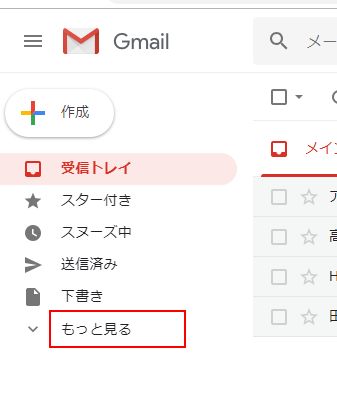
Unless filters or other settings are configured, received messages normally appear in the inbox. Messages identified as spam, however, do not appear in the inbox and are instead placed in Spam. To check messages classified as spam, click 'More' on the left side of the Gmail screen.
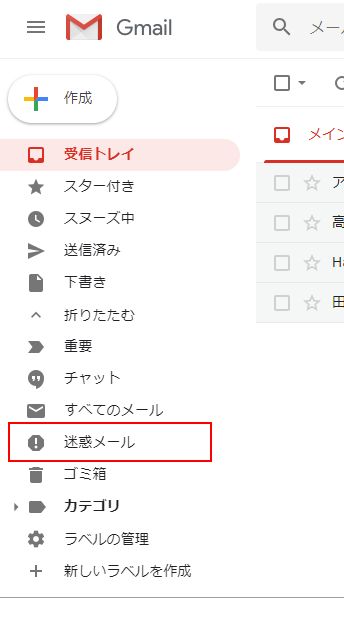
In the list of labels on the left side of the screen, click the 'Spam' label.
Remove the Spam Designation
Some messages in the Spam folder may have been classified there by mistake. You can remove the spam designation from incorrectly classified messages.
Open Spam and select the message you want to restore. Several icons will appear at the top; click 'Not spam.'
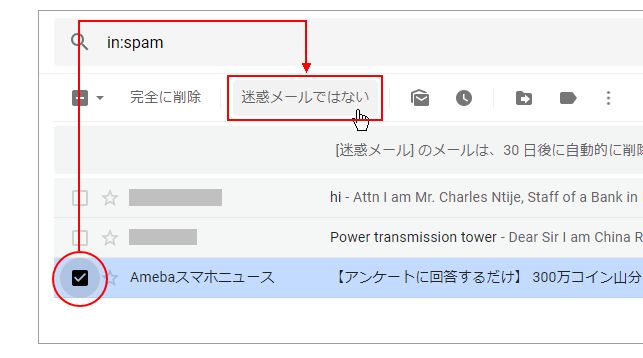
The spam marker attached to the message will be removed, and the message will no longer appear in Spam.
Check Why a Message Was Classified as Spam
When you open a message displayed in Spam, Gmail shows the reason it was classified as spam. Open an actual message in Spam to review the reason.
For example, a message may display a notice such as: 'Many messages from (domain name) were previously identified as spam.'
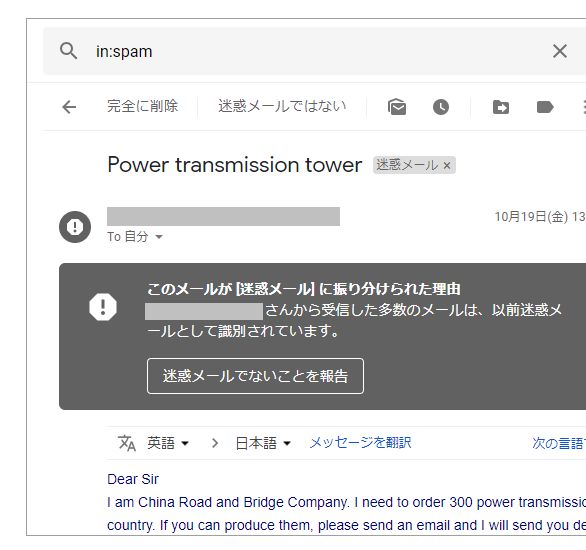
If an important message has been incorrectly classified as spam, check the reason for the classification.
Reference Site Checking and Removing Messages Classified as Spam
Contact Us
Please feel free to contact us using the information below.
